
Merchant guide
How to show discount codes on the Shopify cart
Learn how to show selected discount codes on a Shopify cart page or cart drawer without exposing private codes or changing Shopify discount rules.1. Decide which offers should be public
Start with the promotion goal. A cart offer list works best for codes that customers are expected to discover, such as a welcome offer, free shipping threshold, or a current seasonal campaign.
For each candidate, verify:
- the code is active and intended for public use;
- the start and end dates are correct;
- minimum purchase and product rules match the campaign;
- usage limits can handle storefront exposure;
- customer eligibility is not confidential or misleading; and
- combination settings match the other codes you plan to show.
2. Write customer-facing explanations
A code alone does not explain whether it saves 10%, removes shipping, or applies only above a threshold. Give every public offer a short title and a factual description.
Prefer “10% off orders over $50” to vague copy such as “Best deal.” Mention the condition that most often determines whether the offer applies. Do not promise eligibility when Shopify still needs to evaluate the current cart or customer.
3. Choose the cart placement
Use the full cart page when most shoppers visit it before checkout. Use the cart drawer when the theme keeps shoppers on the product or collection page. If both journeys are common, show the same offer list in both locations.
A compact button is usually less disruptive than an automatically opened modal. Its label should describe the action, for example “Available offers,” and may include an offer count.
For Dawn, use the theme setup checklist. Other cart drawers also need a placement check on the actual theme.
4. Publish the list and enable the theme embed
- In Coupon List Lite, add your active public code from Available Shopify discounts.
- Enter the title and conditions. Enable Show Coupon List on the storefront and your intended cart placement.
- Click Save and publish in the app.
- Open the theme editor, enable App embeds → Coupon offers, and save the theme.
- Add an eligible product to the cart, then open Available offers.
Saving the offer list and saving the theme are separate steps. The button is hidden when the cart is empty. See the illustrated setup guide for the controls.
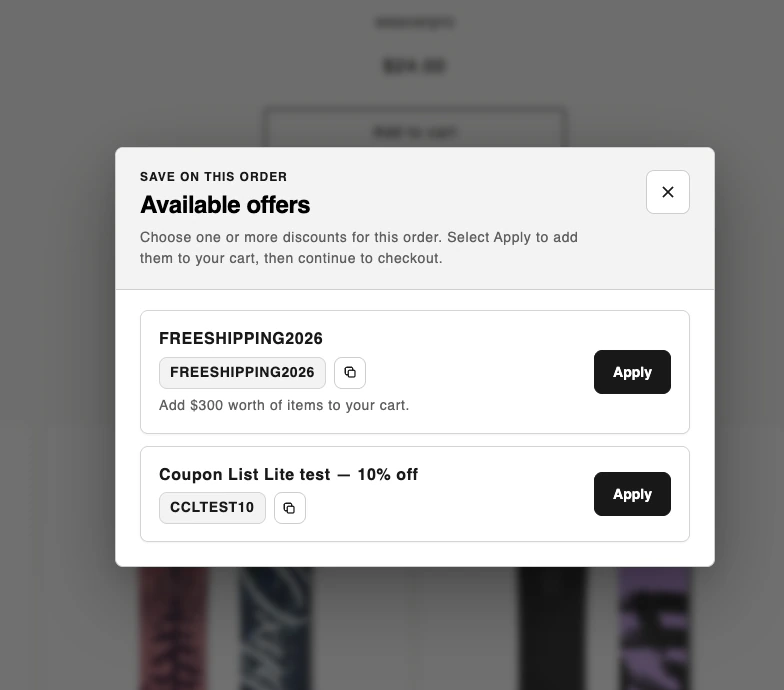
5. Apply codes through Shopify
Coupon List Lite sends the selected code through Shopify's storefront cart flow. Shopify remains responsible for validating dates, products, minimums, customer rules, usage limits, and combinations.
If you allow two selected coupons, first configure those discount classes to combine in Shopify. Displaying two codes does not make them combinable automatically.
6. Test before publishing a campaign
- Use a theme preview or a controlled test product.
- Add an eligible item to the cart.
- Open the offer list on desktop and mobile.
- Apply each code and confirm the cart result.
- Test one deliberately ineligible cart.
- Confirm the offer disappears or expires when expected.
Repeat the test after changing discount rules, replacing the theme, or editing cart-drawer markup. If a check fails, use the discount troubleshooting checklist.
7. Measure the merchant outcome
Track more than clicks. Compare the number of shoppers who open the offer list, apply a code successfully, continue to checkout, and place an order. Also watch margin and support questions. A public coupon can reduce friction, but it can also discount orders that would have converted without it.
Make active discounts easier to find